
AI Super Resolution
ViNano AI
Upload a small or low-resolution image and AI super resolution doubles its width and height. Edges and fine texture are rebuilt, so the bigger version still looks sharp when you print, crop or share it.
Before and after: a 2× AI upscale
Drag the slider to compare the original with the upscaled result. Framing and colors stay the same; what changes is the pixel count and how clean the edges, hair and fabric look at the larger size.
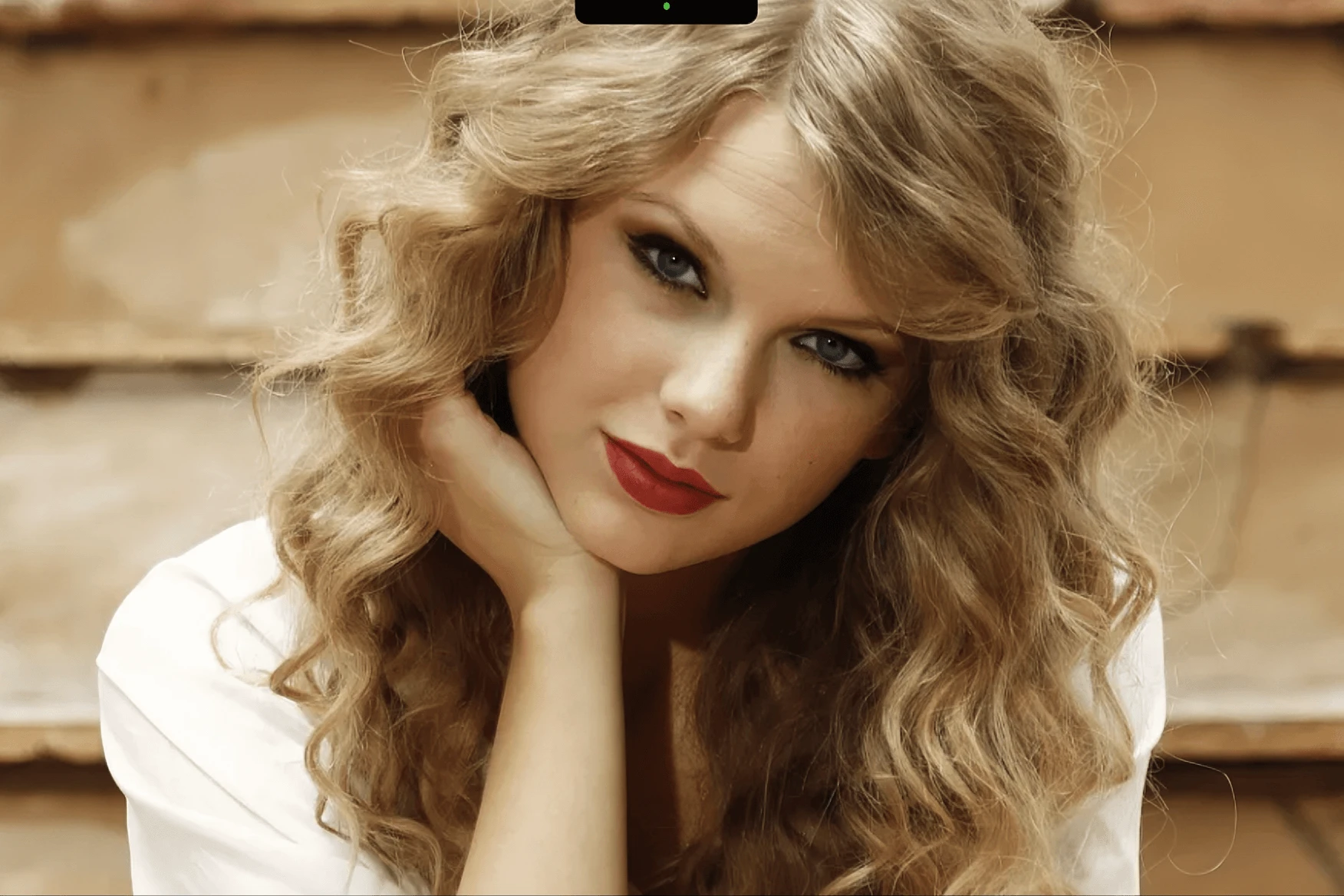
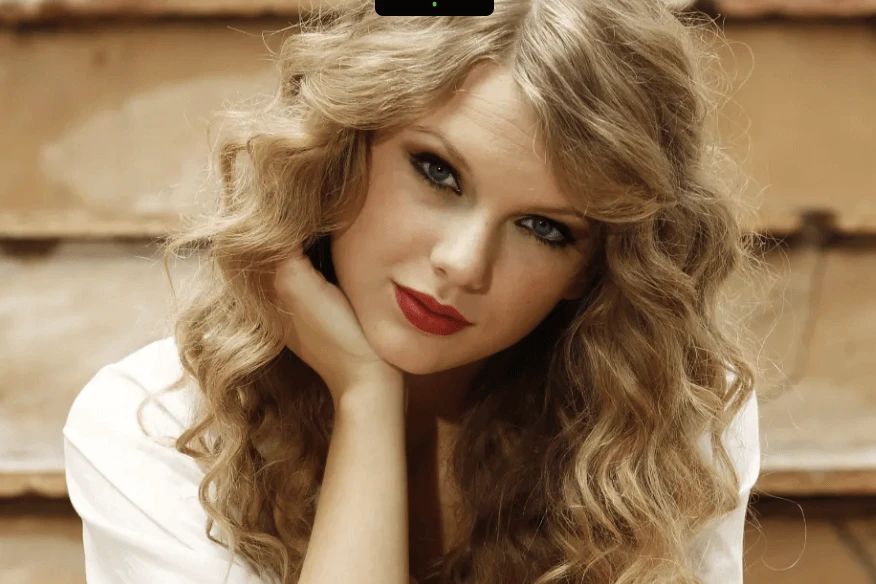
Double the width and height of any photo
Every upload is enlarged by exactly 2×: a 600 × 400 image comes back as 1200 × 800, which is four times as many pixels. The upscaler is Real-ESRGAN, an open-source super resolution model trained to predict the detail a larger version of the picture would have, rather than simply stretching pixels the way a normal resize does.
That makes it a good fit for thumbnails saved from old posts, small product photos from a supplier, screenshots you need in a presentation, or AI images generated at 1K that you want to print at a larger size.
Sharper edges without changing what is in the picture
Super resolution works on what is already there. It cleans up jagged edges and compression blocks and sharpens hair, text and fabric, but it does not invent new objects, change faces or repaint the background. If you need a stronger fix, such as redrawing a very blurry face or reviving faded colors, the AI Image Enhancer does that with a generative model.
Because the content stays the same, the result is safe to use where accuracy matters: product listings, documents, architecture photos and anything you need to match the original.
Pay 10 credits only when the upscale succeeds
Sign in, upload an image and start the upscale. Credits are deducted only after the result comes back, so a failed request costs nothing. The output is a PNG with no watermark, and you can drag the comparison slider over your own image before you download it.
Upscaled images also work well as a first step: enlarge a small photo here, then remove the background for a clean cut-out, or compress the image to WebP before you put it on a website.
How to upscale an image with AI
Upload a photo
Drag an image onto the upload area, paste it from the clipboard or pick a file. JPG, PNG and WebP all work; convert HEIC photos from an iPhone to JPG first.
Start the 2× upscale
Click AI Super Resolution. Processing usually takes a short while depending on the image size and how busy the service is; keep the page open until it finishes.
Compare and download
Drag the slider to check edges and texture against the original, then download the PNG. Nothing is charged if the upscale fails.
Super resolution or image enhancer: which one to use
These tools all make a photo look better, but they solve different problems, so pick by what is wrong with your image.
| Tool | What it does | Credits | Best for |
|---|---|---|---|
| AI Super Resolution (this page) | Enlarges the image 2× and sharpens edges; content stays the same | 10 | Images that are too small or pixelated |
| Image Enhancer · Sharpen | Crisp upscale that makes soft photos and text look cleaner | 10 | Slightly blurry photos, screenshots, product shots |
| Image Enhancer · Enhance | A generative model redraws detail, light and color and returns a 2K image (paid accounts) | 50 | Badly degraded or dull photos where a redraw is acceptable |
| Photo restoration | Repairs scratches, tears and fading, with optional colorize | Shown in the editor | Scanned old prints and family photos |
Old prints with scratches or creases are better handled by photo restoration; super resolution enlarges damage along with everything else.
Tips for the best upscaling results
- Start from the largest copy you have. Upscaling an original export gives better results than upscaling a screenshot of it.
- Crop before you upscale. Cutting away empty space first means the 2× enlargement goes into the part you actually need.
- Need 4× or more? Download the result and upscale it a second time; check the comparison each round, because heavy JPEG noise can become more visible.
- Upscale before you add text or logos, so the lettering you add later stays crisp.
- For web use, compress the PNG afterwards. Larger images are heavier, and WebP keeps most of the detail at a fraction of the size.
AI super resolution FAQ
How much does AI super resolution cost?
Each upscale costs 10 credits and you need to be signed in. Credits are deducted only after the result is returned, so a failed attempt is not charged. Downloads have no watermark.
How much bigger will my image get?
Exactly 2× in each direction. A 1000 × 750 photo becomes 2000 × 1500. To go larger, upscale the result again.
Will the AI change faces or add things to my photo?
No. Super resolution sharpens and enlarges what is already in the picture. It does not redraw faces or add objects. If you want a stronger, generative fix, use the Image Enhancer's Enhance mode instead.
Which file formats can I upload?
Common image formats such as JPG, PNG and WebP. HEIC photos are not converted automatically, so export them as JPG first. The result is always downloaded as a PNG.
What is the difference between super resolution and the image enhancer?
Super resolution enlarges the image 2× and keeps the content faithful. The image enhancer either sharpens soft photos (Sharpen, 10 credits) or redraws detail and color with a generative model and outputs 2K (Enhance, 50 credits, paid accounts).
Can I upscale AI-generated images?
Yes. Images generated at 1K are a common use: upscale them here to get a larger file for printing, wallpapers or detailed crops.
Where are my images stored?
Images are processed by our services and service providers as described in the Privacy Policy. Clearing or leaving this page does not delete stored images or copies. For privacy or deletion requests, contact support@vinano.ai.
More AI image tools on ViNano
Make a small image twice as big
Upload a photo, compare the 2× result and download a watermark-free PNG.