
ViNano browser extension
AI image editor extension for Chrome and Edge
Right-click an image or selected text on any webpage and keep creating in the ViNano sidebar. Generate images from a prompt, edit with reference images, remove backgrounds or upscale 2×, with the account and credits you already have on ViNano.
Free to install. Creating images uses credits from your ViNano account.
The sidebar at a glance
What you can do
Create and edit in the sidebar
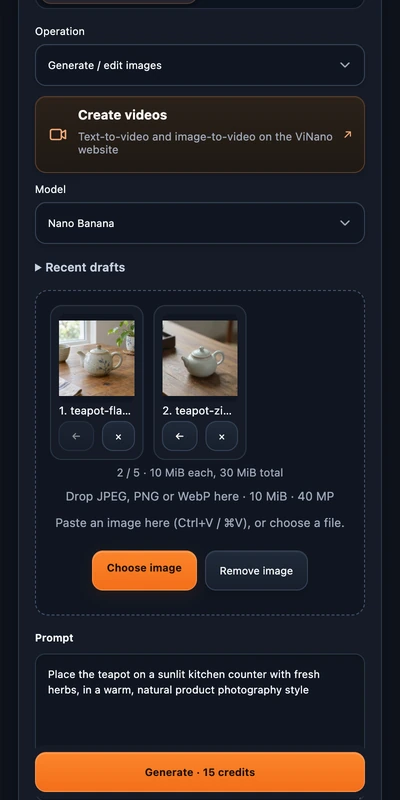
Write a prompt or add up to 5 reference images, choose a model, aspect ratio and resolution, and generate without leaving the page you are reading.
Right-click any web image
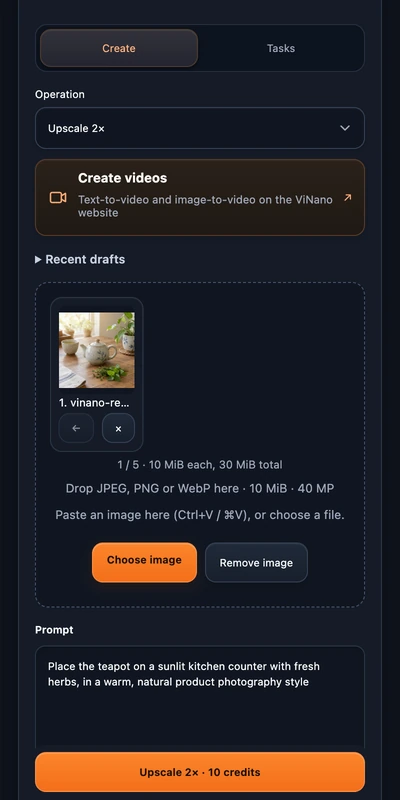
Pick “Create with ViNano”, “Remove background” or “Upscale 2×” from the context menu. The image opens in the sidebar so you can review it first.
Turn selected text into a prompt
Select text on a page, right-click and choose “Create with ViNano” to start a draft from it.
Use your own files
Choose, drag in or paste JPEG, PNG or WebP images, put them in order and edit the prompt before anything is uploaded.
Preview, download and reuse
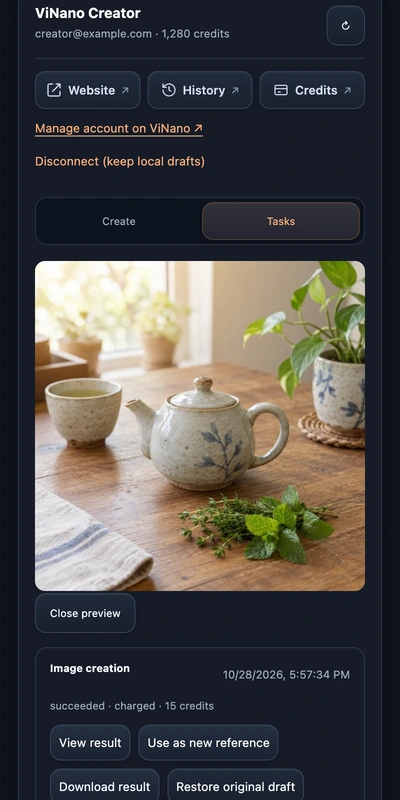
Finished images appear in the sidebar. Download them, use one as the next reference, or find them later in your ViNano history.
Continue with video
“Create videos” opens ViNano's text-to-video and image-to-video tools on the website, with the same account.
How to get started
Install ViNano from the Chrome Web Store or Microsoft Edge Add-ons.
Click the ViNano icon in your toolbar to open the sidebar, then connect your ViNano account. You sign in on vinano.ai, not in the extension.
Right-click an image or selected text on a webpage, or add your own images in the sidebar.
Check the credit price and start. Nothing is uploaded or charged until you confirm.
Account and credits
The extension is free to install and does not come with credits. It works with your ViNano account and the credits you already have, and shows the price before each task. Sign-in, plans and top-ups stay on vinano.ai.
See plans and creditsPrivacy and permissions
- The extension only has standing access to vinano.ai. On any other site, your browser asks for access to that one site when you pick an image there. You can decline or revoke it and use local files instead.
- Selecting an image, opening a tool or asking for a price never starts a paid task by itself. You decide when to upload and when to start.
- Drafts stay on your device and are separate from your uploads and task history on the website.
- The extension does not read or store your password.
FAQ
Is the ViNano extension free?
Installing it is free, and it does not include credits. Generating, editing and upscaling use credits from your ViNano account, and the sidebar shows the price before you start.
Which browsers does it work in?
Google Chrome 116 or later and Microsoft Edge on desktop. Firefox, Safari and mobile browsers are not supported.
Do I need a ViNano account?
Yes. Connect your account from the sidebar. If you are already signed in on vinano.ai, it takes one click. Signing up is free.
Can the extension see every page I visit?
No. It only runs on vinano.ai. On other sites it reads an image only after you pick that image and allow access for that site, and you can revoke the permission in your browser's extension settings.
Where do my results go?
They appear in the Tasks tab of the sidebar and in your image history on vinano.ai, so you can download them again later.
Which languages does the sidebar support?
English and Simplified Chinese. It follows your browser language and uses English for all other languages.
More on ViNano
Add ViNano to your browser
Install once, then right-click any image to start.