
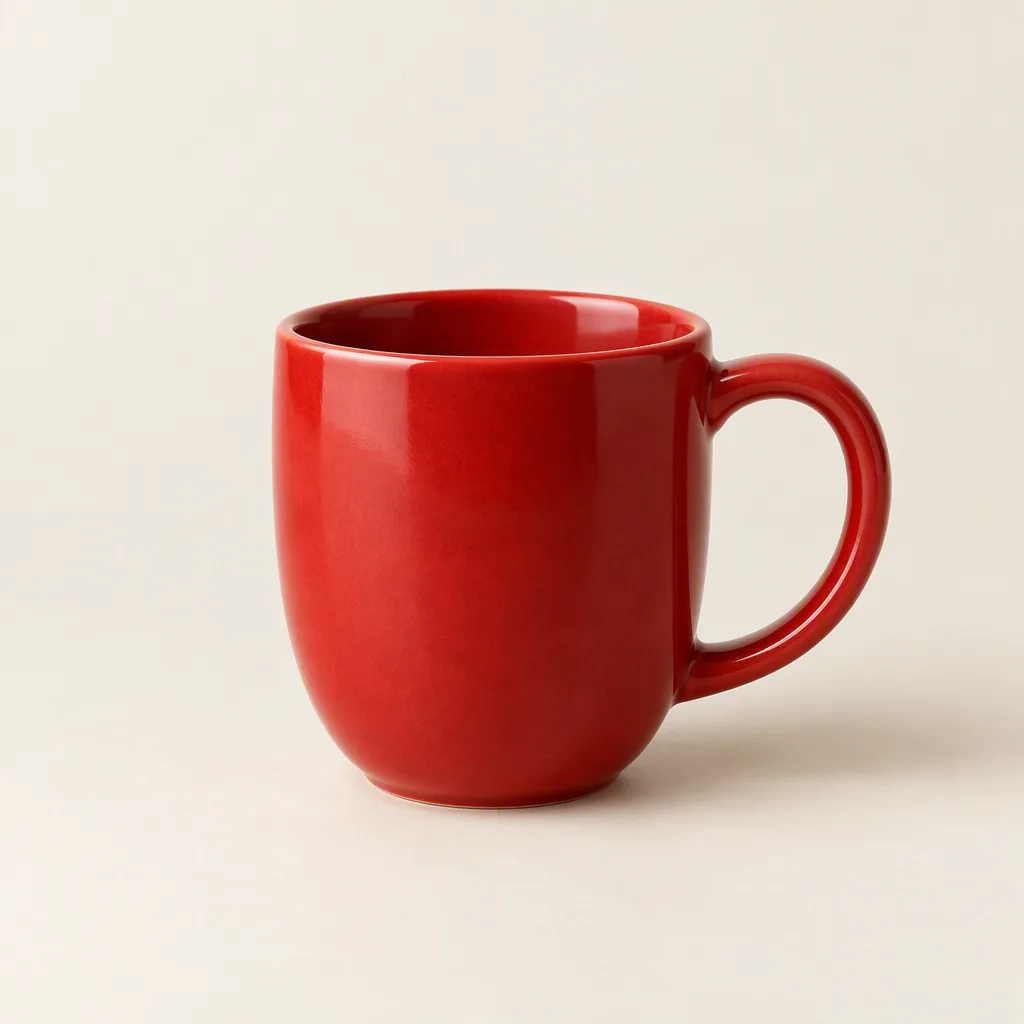
GPT Image 2.5 Flare
Flare prioritizes speed for drafts, product concepts and quick variations.
1K · 2K · 4K
FROM AN IDEA TO AN IMAGE
Create and edit images with GPT Image 2.5 Flare / Sunburst on ViNano. Start with a prompt or a reference photo, explore practical examples, and check credits before generating.
Start creatingFlare prioritizes speed for drafts, product concepts and quick variations.
1K · 2K · 4K
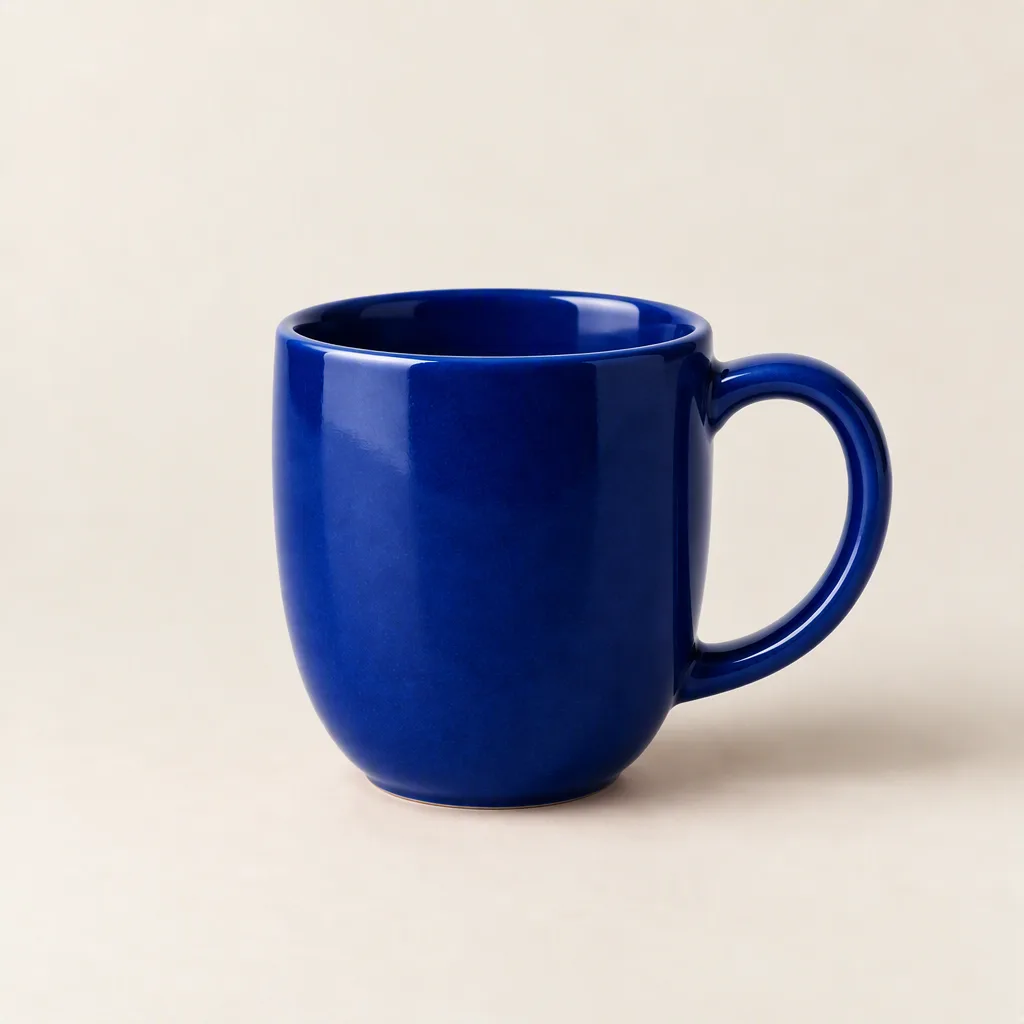
Sunburst focuses on fine details and precise edits. Allow more generation time.
1K · 2K · 4K
Content generated on this platform is produced by artificial intelligence models and does not represent the platform's position. [Disclaimer]. [Privacy Policy].
Describe the product, surface, lighting and camera angle to develop a campaign concept. Use a reference photo when the product needs to stay recognizable.
Specify a headline, visual hierarchy and empty space. Put exact wording in quotation marks, then check the generated typography before publishing.
Upload an image and say what should change and what should stay. Reuse a result as your next reference to explore another direction.
Write a specific prompt for a new image, or switch to image editing and add a reference.
Select GPT Image 2.5, an available resolution and aspect ratio. Check the credit amount on the generation button.
Review the result, download it, or use it as a reference for your next edit. Your history keeps completed work together.
A studio photograph of a matte ivory skincare bottle on pale sandstone. Soft light from the left, a gentle contact shadow, no extra text, product in the right third, generous empty space for a headline, 4:3 composition.
Use this promptDesign a minimalist exhibition poster. The only headline reads "FORM / LIGHT". Large black typography, warm white paper, one sculptural red sphere, clear margins and a small empty footer, portrait composition.
Use this promptAn editorial illustration of a quiet city bookstore at dusk. Warm light through tall windows, a cyclist in the foreground, muted blue and terracotta palette, textured flat shapes, no text, landscape composition.
Use this promptBoth models cost 100 / 200 / 400 ViNano credits per image at 1K / 2K / 4K. The existing non-paid account surcharge adds 10 credits per image. Check the generation button before submitting.
View credit packs| Resolution | Paid accounts | Non-paid accounts |
|---|---|---|
| 1K | 100 | 110 |
| 2K | 200 | 210 |
| 4K | 400 | 410 |
Flare prioritizes speed for drafts, product concepts and quick variations. Sunburst focuses on fine details and precise edits. Allow more generation time.
Yes. Choose image-to-image, upload a reference and describe the intended change. Include details to preserve, such as the subject, framing or product color.
Generation requires a signed-in account and enough ViNano credits. Available account rewards may help cover a request. This page does not offer unlimited free generation.
Start with an available lower-resolution tier to compare ideas. Choose a higher tier for the version you want to keep. Pixel dimensions depend on the chosen aspect ratio.
No. ViNano is a separate image creation service. GPT Image 2.5 is a model you can select here; a ChatGPT subscription does not supply ViNano credits.
Specify the subject, composition, lighting and output purpose. For an edit, separate the changes from the details to keep. For lettering, quote the exact text and check the result.