
AI Professional Photography: Give Your Photo a Studio Look
All tools (30)
AI professional photography restyles one photo as if it had been shot in a studio: controlled light, a soft background, careful framing and film-like colour. Upload a snapshot, keep or edit the pre-filled prompt, and download a studio-style portrait, product or food shot.
Each generation uses credits, and the generate button shows the cost before you start. The result is an AI-generated image in a photographic style, not a photograph taken by a camera. Only upload photos you have the right to edit.
Drop, paste or click to choose a photo
Needs: 1 photo · PNG, JPEG or WEBP, up to 20 MB
Checking the price…
Content generated on this platform is produced by artificial intelligence models and does not represent the platform's position. [Disclaimer]. [Privacy Policy].
AI Professional Photography Examples
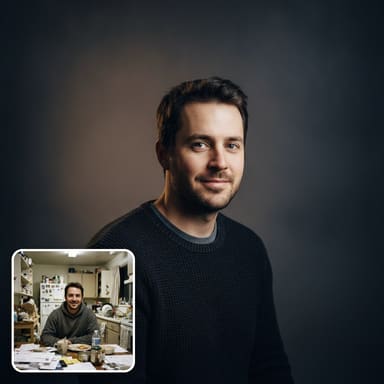
Three casual snapshots run with the pre-filled prompt and Nano Banana, the default model. The small frame in each example is the original upload. The originals are AI-generated sample pictures, so no real person is shown.
Kitchen snapshot
A casual snapshot at a cluttered kitchen table becomes a quiet studio portrait with a dark gradient backdrop, soft light from one side and an off-centre frame. The hoodie turned into a dark jumper, because the prompt also asks for casual urban styling.
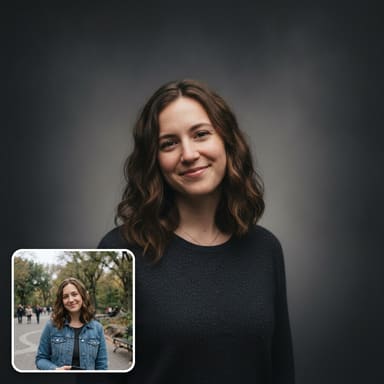
Park snapshot
An overcast park snapshot with passers-by behind the subject, restyled with a grey studio backdrop, soft directional light and fine film grain. The face and the hair stay recognisable; the denim jacket became a plain dark top.
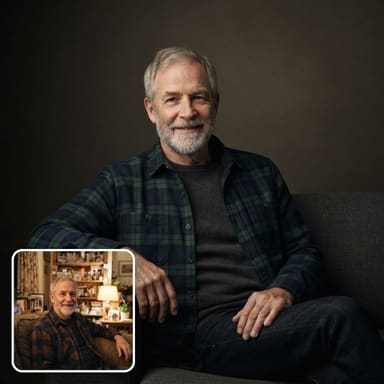
Living-room snapshot
A warm, slightly soft sofa snapshot relit as a seated studio portrait. The lamp glare and the crowded shelves are gone; the relaxed pose and a plaid shirt carry over in cooler tones.
Professional Photography: real results and prompts
We made these on 18 November 2026 with our own test account, using Nano Banana at 1K, the model this page starts with. The sample uploads were made with text-to-image first, and the people in them are AI-generated, not real. Settings and prompts are shown exactly as we used them, and where a result missed part of the prompt or has spelling mistakes, the caption says so. Click “Use this prompt” to put a prompt into the generator above.
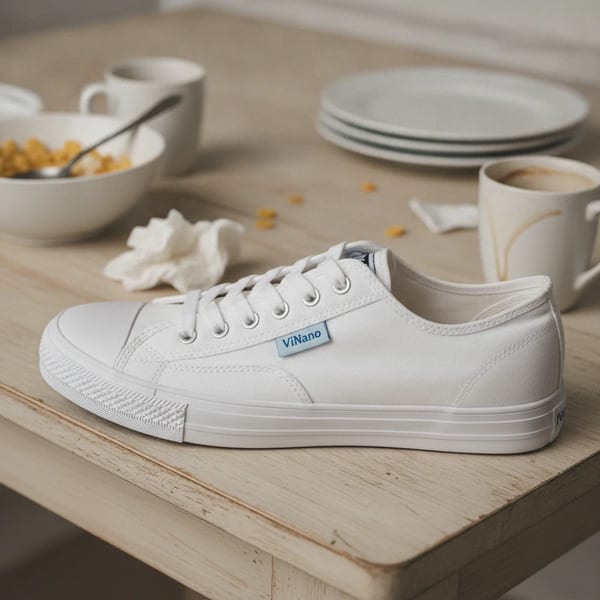
Sample upload
Prompt used to make this sample photo
A casual phone photo of a white canvas sneaker with a small fabric tag that reads "ViNano", sitting on a messy kitchen table, flat indoor lighting.
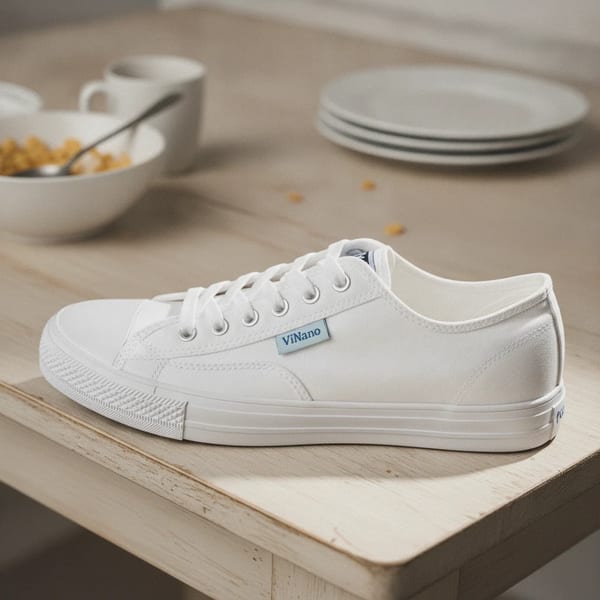
Result
The default cleanup: brighter, more even light and a tidier table, though some of the breakfast clutter is still there.
Prompt
No extra prompt (the mode's default instructions)
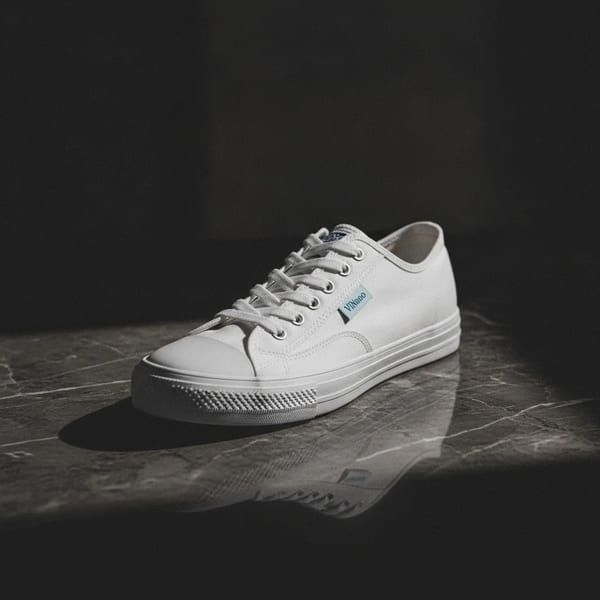
Result
Dark marble and hard side light, as the prompt asked. The clutter is gone and the ViNano tag is still on the shoe.
Prompt
Dark marble surface with dramatic side lighting
How to Use AI Professional Photography
- 1
Upload one photo. For portraits, pick a sharp picture in which the face is visible; for products or food, shoot the subject on an uncluttered surface.
- 2
Read the pre-filled prompt. By default it asks for a half-body studio portrait in casual urban clothing, with soft directional light, a gradient background, fine film grain and an off-centre composition. If the outfit should stay, say so in the prompt (“keep the original clothes”), or rewrite it for your subject, for example “overhead food shot on dark wood, soft window light”.
- 3
Check the credit cost on the button and generate.
- 4
Compare the result with your original, adjust the prompt if the light or the framing is not what you wanted, and download.
Tips
- •Light direction in the source matters: a face lit from the front or the side converts better than one lit from behind.
- •Photography terms work in the prompt: “85mm look”, “shallow depth of field”, “softbox from the left”, “high-key white background”.
- •For a business headshot with a new outfit, the dedicated headshot tool is the better starting point.
What AI Professional Photography Changes in a Picture
The instruction behind the tool reads like a studio brief. It asks for key, fill and rim lighting with controlled shadows, composition by the rule of thirds with balanced negative space, sharp focus on the eyes or the key feature, smooth background blur, and colour grading with rich but natural tones. Distracting elements are removed, and skin keeps its natural texture.
Your prompt is added on top of that brief, so you only need to describe what is specific to your picture. Nano Banana is selected by default, and you can pick another model in the tool.
Portraits, Products and Food
Portraits are the home ground: the default prompt asks for a quiet, half-body studio portrait with a gradient backdrop and film grain. For products, replace it with the surface, background and light you want, such as “white seamless background, soft shadow, three-quarter angle”. For food, name the angle and the mood, such as “overhead, dark slate, steam visible”.
The underlying brief is written around portraiture, so other subjects can take a second try. Keep prompts short and concrete, and rerun when the model drifts toward a portrait-style composition.
Studio Look, Headshot or Retouch: Which Tool to Use
Use AI professional photography when you like the photo and want it to look professionally lit and finished. Use the AI headshot generator when you need a business headshot with a chosen outfit and backdrop from a selfie, and the AI portrait enhancer when you only want retouching in a set style. For any other change, describe it in the AI image editor.
Limits and Honest Use
The model regenerates the scene, so details can change: a logo on a product, the pattern on a plate, the exact shape of a face. With the pre-filled prompt, clothes often change too, as the examples above show. Do not use a generated product or food image to advertise something that looks materially different in reality, and label AI-generated images where a platform or a client requires it. Upload photos of other people only with their consent.
AI Professional Photography FAQ
Quick answers to keep your workflow moving.
What is AI professional photography?
It is the use of an image model to restyle an existing photo with studio-style lighting, framing and colour. You upload one picture and get a new image that looks professionally shot.
Do I need to write a prompt?
No. The prompt box is pre-filled with a studio portrait brief that you can use as it is, edit or replace.
Does it work for product and food photos?
Yes, with an edited prompt that describes the surface, the angle and the light. The tool is tuned for portraits, so products and food may need a rerun.
Will my face stay the same?
The brief asks for authentic expressions and natural skin texture, and faces usually stay close to the source. Because the image is regenerated, check the likeness before you use it.
How much does AI professional photography cost?
Each generation uses credits based on the model you pick, and the generate button shows the cost before you start. New accounts receive free sign-up credits; the pricing page lists credit packs and plans.
Are my photos stored or shared?
Your upload is used to create the result you ask for and is not shown as an example on this page. Storage, retention and deletion are explained in our Privacy Policy, and the data retention notice with your results shows the current setting for your account.
Need another workflow?
Browse the complete gallery of ViNano AI generation modes to find the perfect fit for your project.