
AI Portrait Enhancer for Natural-Looking Retouching
All tools (30)
The AI portrait enhancer retouches one portrait photo in the look you choose: Natural Enhancement, Glamour Style, Vintage Look or Soft & Dreamy. It smooths skin while keeping texture, brightens eyes, improves the lighting and can replace the background, then gives you a finished portrait to download.
Each generation uses credits, and the generate button shows the cost before you start. Only upload portraits of yourself or of adults who have agreed to it.
Drop, paste or click to choose a photo
Needs: 1 photo · PNG, JPEG or WEBP, up to 20 MB
Checking the price…
Content generated on this platform is produced by artificial intelligence models and does not represent the platform's position. [Disclaimer]. [Privacy Policy].
AI Portrait Enhancer Examples
Three finished portraits in different moods: vintage, black and white, and warm natural light.
Vintage look
A 1940s-style portrait with waved hair, pearls and warm lamplight in a book-lined room.
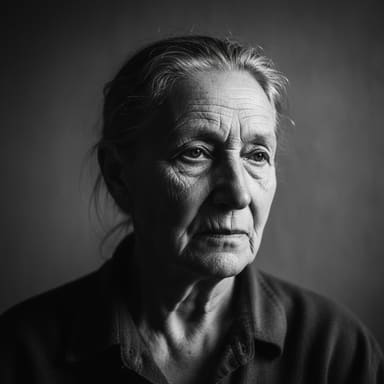
Black-and-white character portrait
A close, dramatic portrait of an older woman in which every line of the face is kept, not smoothed away.
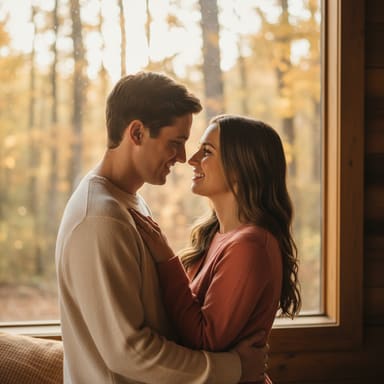
Soft couple portrait
A couple by a window in autumn light, with a soft background and gentle skin tones.
Portrait Enhancement: real results and prompts
We made these on 18 November 2026 with our own test account, using Nano Banana at 1K, the model this page starts with. The sample uploads were made with text-to-image first, and the people in them are AI-generated, not real. Settings and prompts are shown exactly as we used them, and where a result missed part of the prompt or has spelling mistakes, the caption says so. Click “Use this prompt” to put a prompt into the generator above.
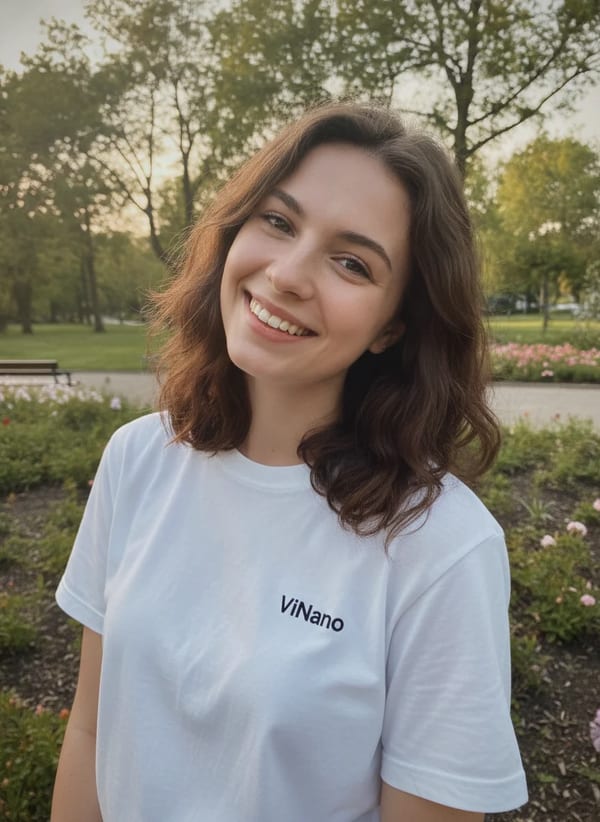
Sample upload
Prompt used to make this sample photo
A realistic smartphone photo of a young woman with shoulder-length brown hair smiling in a park, wearing a white T-shirt with the word "ViNano" printed small on the chest, natural daylight, casual snapshot.
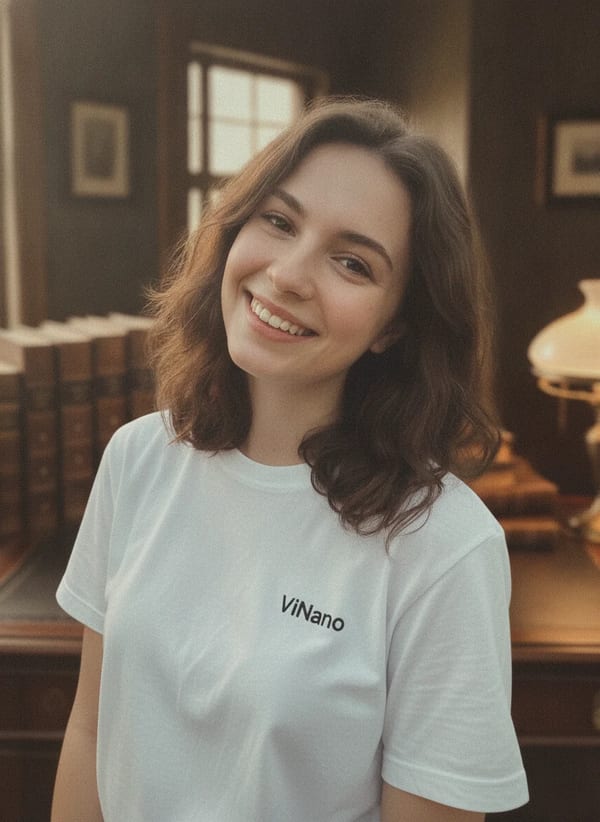
Result
Warm, film-like tones and a darker wood-paneled background, while her face and T-shirt stay the same.
Setting: Portrait Style: Vintage Look
Prompt
No extra prompt (the mode's default instructions)
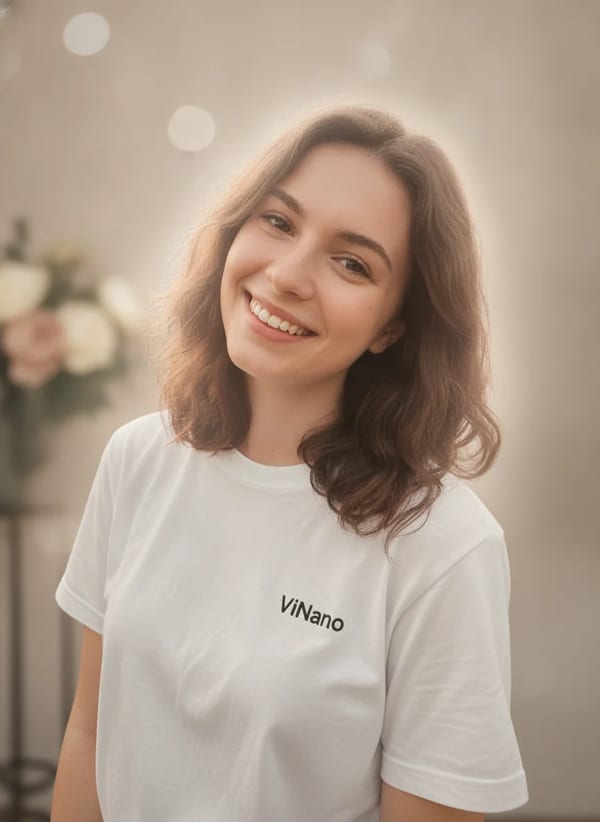
Result
A light, hazy background with soft bokeh and a gentle glow around her.
Setting: Portrait Style: Soft & Dreamy
Prompt
No extra prompt (the mode's default instructions)
How to Use the AI Portrait Enhancer
- 1
Upload one portrait. A sharp photo with the face well lit and not cropped at the chin or hairline gives the model the most to work with.
- 2
Choose a “Portrait Style”: Natural Enhancement, Glamour Style, Vintage Look or Soft & Dreamy.
- 3
Switch on “Replace Background” if you want a new setting that matches the style, or leave it off to keep and tidy the original background. Add optional notes on lighting or mood in the prompt box.
- 4
Check the credit cost on the button, generate, compare the result with the original, and download.
Tips
- •Start with Natural Enhancement; it changes the least and shows whether the likeness holds.
- •Mention what must not change, such as freckles, glasses, a scar or grey hair, if you want it kept.
- •Heavily filtered or very small photos leave little real detail to enhance, so the model invents more.
Four Portrait Styles and When to Use Them
Natural Enhancement is the everyday retouch: even skin tone, brighter eyes and cleaner light, with pores and expression lines still visible. Glamour Style goes further toward a magazine finish, with stronger contouring, smoother skin and richer colour. Vintage Look applies period colour grading and a film-like finish, and Soft & Dreamy lowers contrast and adds a gentle glow that suits couples, maternity and family portraits.
The styles change mood and finish, not identity. If you want a different outfit, hairstyle or age, that is an edit for another tool.
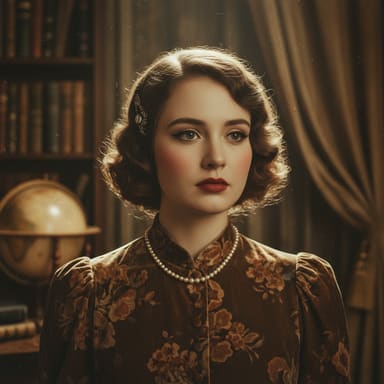
What the AI Portrait Enhancer Changes
The instruction behind every style covers the ground a retoucher would: skin smoothing that preserves natural texture, eye brightness and catchlights, subtle definition of facial contours, lip colour, and the balance of shadows and highlights. It also asks for portrait lighting that fits the style and for accurate skin tones.
With “Replace Background” off, the tool keeps your environment and only makes it support the subject better. With it on, the model builds a new setting that fits the chosen style. Because the portrait is regenerated by an image model, compare it with your original: small features such as teeth, earrings or the hairline can shift.
Tips for a Natural AI Portrait Retouch
Good input beats heavy correction. Face a window, avoid overhead light, and keep the camera at eye level. Upload the original file, not a screenshot or a copy that a chat app has compressed.
If the result looks over-retouched, switch to Natural Enhancement and add “keep natural skin texture, minimal retouching” in the prompt box. To sharpen or upscale an old or soft photo first, run it through the image enhancer. For edits beyond retouching, describe them in the AI image editor.
Consent and Honest Use of Retouched Portraits
Retouch your own portrait freely. For anyone else, ask first, and do not upload photos of minors. Do not use an enhanced portrait where an unedited likeness is required, such as an identity document; read the official photo rules for that document instead.
AI Portrait Enhancer FAQ
Quick answers to keep your workflow moving.
What does the AI portrait enhancer do?
It regenerates your portrait with professional-style retouching: smoother but textured skin, brighter eyes, better light and a finish that matches one of four styles. Nano Banana is selected by default, and you can pick another model in the tool.
Will I still look like myself?
That is the aim: the instruction asks the model to keep authentic facial characteristics. Natural Enhancement stays closest to the original. Check the result against your photo and rerun if a feature changed.
Can it change the background of my portrait?
Yes. Switch on “Replace Background” and the model creates a setting that suits the style. Leave it off to keep your own background.
How much does the AI portrait enhancer cost?
Each generation uses credits based on the model you pick, and the generate button shows the cost before you start. New accounts receive free sign-up credits; the pricing page lists credit packs and plans.
Is this the same as a headshot generator?
No. This tool retouches the portrait you upload. To turn a selfie into a business headshot with a new outfit and backdrop, use the AI headshot generator.
Are my photos stored or shared?
Your upload is used to create the result you ask for and is not shown as an example on this page. Storage, retention and deletion are explained in our Privacy Policy, and the data retention notice with your results shows the current setting for your account.
Need another workflow?
Browse the complete gallery of ViNano AI generation modes to find the perfect fit for your project.