
AI Landmark Annotation for Photos and Maps
All tools (30)
AI landmark annotation overlays information on a picture of a place. Upload one image of a building, monument, skyline or site map, and the tool outlines key features and adds callouts with names, dates and facts in an AR-style layout that you can download and share.
Facts and labels are written by an AI model and can be wrong. Verify names, dates and figures before you publish or teach from an annotated image. Each generation uses credits, and the generate button shows the cost before you start.
Drop, paste or click to choose a photo
Needs: 1 photo · PNG, JPEG or WEBP, up to 20 MB
Free accounts can only use Nano Banana. In our test, the labels came out garbled with it; the samples on this page were made with Nano Banana 2.1.
Checking the price…
Content generated on this platform is produced by artificial intelligence models and does not represent the platform's position. [Disclaimer]. [Privacy Policy].
Landmark Annotation Examples
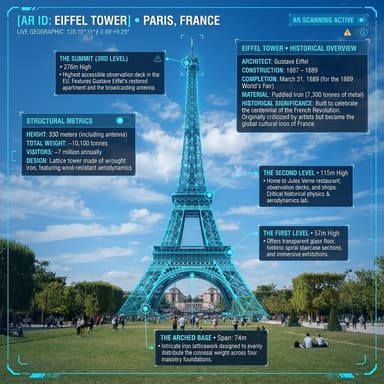
Three AI-generated sample travel pictures run with the pre-filled prompt and Nano Banana 2.1, a model that needs a paid account. No place name was given; the model identified each landmark and wrote the labels itself. Most labels check out, but not all: the Eiffel Tower panel names Gustave Eiffel as the architect, a role that belonged to Stephen Sauvestre, and some small print is garbled. Proofread before you publish.
Eiffel Tower
The model outlines the tower and pins panels to the summit, both levels and the arched base, with heights, construction dates and visitor numbers.
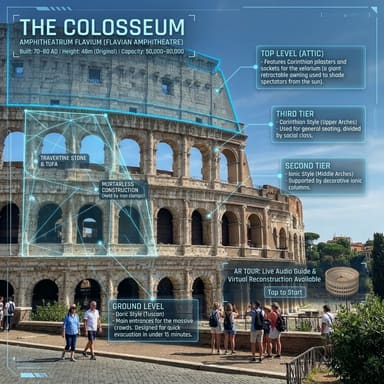
Colosseum
Tier-by-tier callouts name the architectural order of each level, the travertine stonework and the awning sockets on the attic.
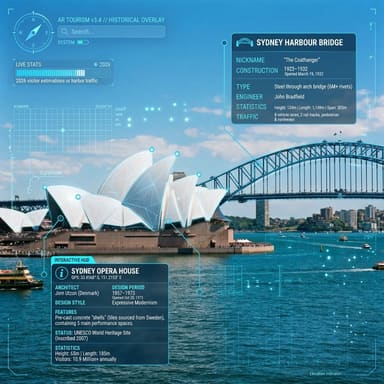
Sydney Opera House and Harbour Bridge
Two landmarks in one frame get separate panels: architect, dates and UNESCO status for the opera house; span, length and traffic lanes for the bridge.
Landmark Annotation: real results and prompts
We made these on 18 November 2026 with our own test account, using Nano Banana 2.1 at 1K. Paid accounts start on Nano Banana 2.1 here. Free accounts use Nano Banana, and with it the labels came out garbled in our test. The sample upload was made with text-to-image first, and the person in it is AI-generated, not real. Prompts are shown exactly as we used them. AI can get facts wrong, so check the labels before you share the image. Click “Use this prompt” to put a prompt into the generator above.
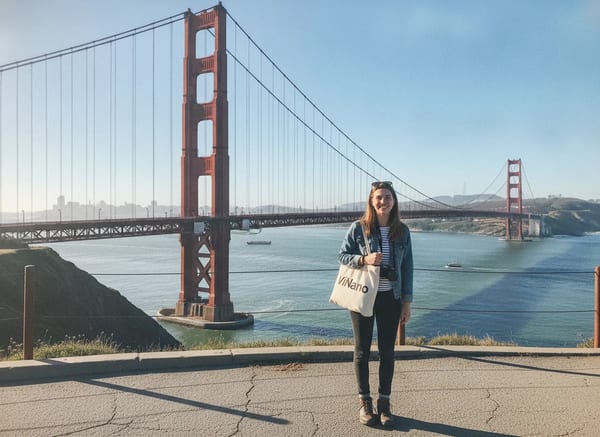
Sample upload
Prompt used to make this sample photo
A realistic travel photo of the Golden Gate Bridge on a clear morning, a tourist in the foreground holding a canvas tote bag printed with "ViNano".
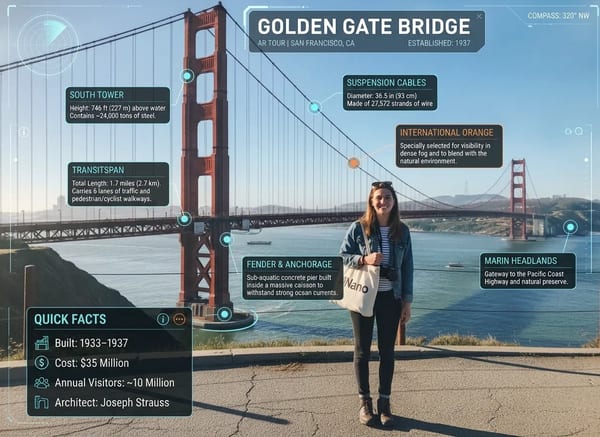
Result
Without a prompt you get AR-style labels for the tower, the cables, the bridge color and the headlands, plus a quick-facts panel, all in sharp text. Two slips: one heading reads “TRANSITSPAN”, and Joseph Strauss is listed as the architect, though he was the chief engineer.
Prompt
No extra prompt (the mode's default instructions)
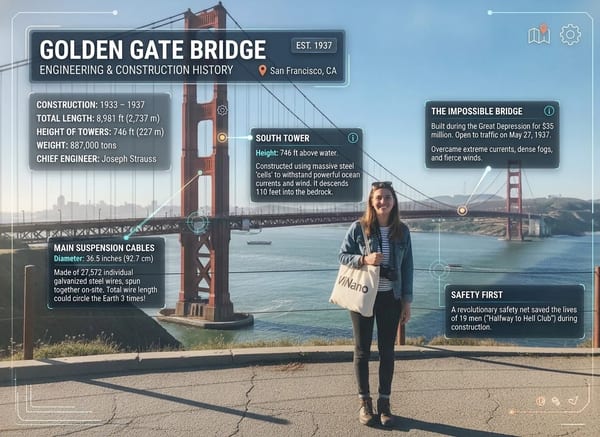
Result
Asked to focus on construction history, the labels cover the build years, the tower height, the 27,572 wires in each main cable and the safety net. One date is off: May 27, 1937 was the opening day for people on foot, and cars crossed the next day.
Prompt
Focus on the bridge's construction history and engineering
How to Use AI Landmark Annotation
- 1
Upload one photo of a landmark, a street view, a skyline or a map of a site.
- 2
Keep the pre-filled prompt for blue outlines and English callouts in a HUD style, or edit it. Naming the place helps: “This is the Brandenburg Gate in Berlin. Label the quadriga and the columns, and add the year it was completed.”
- 3
Check the credit cost on the button and generate.
- 4
Read every label, rerun or correct anything that is wrong, and download the annotated image.
Tips
- •Tell the tool what the landmark is; recognition from the picture alone is hit and miss for lesser-known places.
- •Ask for fewer, larger labels if the text comes out too small to read.
- •Say where labels may not go (“do not cover the dome”) to keep the subject visible.
What AI Landmark Annotation Adds to an Image
By default the tool asks an image model for an augmented-reality style overlay: geometric outlines around key architectural features, connecting lines, and semi-transparent panels with historical facts, architectural details and cultural notes in English. The instruction also asks for readable typography and for the original image to stay visible under the overlay. Paid accounts start on Nano Banana 2.1, which wrote small labels more cleanly than Nano Banana in our test runs and was used for the examples above; it costs more credits per image. Free accounts start on Nano Banana. You can pick another model in the tool.
You steer the result with the prompt: which features to label, which period or theme to emphasise, what language to write in, and a clean museum-label look instead of a futuristic HUD if you prefer.
Not the Same as Landmark Annotation for Datasets
In machine learning, “landmark annotation” also means marking keypoints, such as facial landmarks, on images to train a model. This tool does not do that: it does not output coordinates, label files or bounding boxes. It produces a finished picture for people to read, such as a travel post, a classroom slide or a visitor handout.
Uses for Annotated Landmark Photos
Travellers turn a trip photo into an explainer for friends. Tour guides and teachers prepare visual handouts that point at the parts of a cathedral or a ruin. Venues label a site plan for visitors, and creators use annotated frames as video thumbnails.
To animate a labelled image with a slow zoom, send it to the AI video generator. For a different kind of edit, such as removing passers-by from the shot before you annotate it, use the AI image editor.
Accuracy: Check Every Label
The model writes labels from its training and from what it sees in the picture. It can misidentify a building, invent a date or misspell a name, and small text is especially error-prone. Treat the result as a draft layout: give the correct facts in your prompt when accuracy matters, and proofread the image before it goes in front of an audience.
Landmark Annotation FAQ
Quick answers to keep your workflow moving.
What is AI landmark annotation?
It is an AI-generated overlay of outlines, labels and fact panels on a photo or a map of a place. You upload one image, and an image model adds the annotations.
Can it identify any landmark from a photo?
Famous landmarks are often recognised, but identification is not reliable. Name the place in the prompt to get correct labels.
Can the labels be in another language?
The default prompt asks for English. Edit it to request another language; accuracy with non-Latin scripts varies by model.
Does landmark annotation export coordinates or label files?
No. The output is an image only. It is not a data-labelling tool for computer vision datasets.
How much does the landmark annotation tool cost?
Each generation uses credits based on the model you pick, and the generate button shows the cost before you start. New accounts receive free sign-up credits; the pricing page lists credit packs and plans.
Are my photos stored or shared?
Your upload is used to create the result you ask for and is not shown as an example on this page. Storage, retention and deletion are explained in our Privacy Policy, and the data retention notice with your results shows the current setting for your account.
Need another workflow?
Browse the complete gallery of ViNano AI generation modes to find the perfect fit for your project.