
Four Seasons Photo Generator
All tools (30)
The four seasons photo generator shows one place across the whole year. Upload a photo of a garden, street, house or landscape and get a 2x2 grid of the same scene in spring, summer, autumn and winter, with matching composition and seasonal light, foliage and weather.
Each generation uses credits, and the generate button shows the cost before you start. The seasons are an AI interpretation of your scene, not a forecast or a record of the real location.
Drop, paste or click to choose a photo
Optional, up to 1 photo · PNG, JPEG or WEBP, up to 20 MB
Free accounts can only use Nano Banana. In our test, this mode returned the photo almost unchanged with it; the samples on this page were made with Nano Banana 2.1.
Checking the price…
Content generated on this platform is produced by artificial intelligence models and does not represent the platform's position. [Disclaimer]. [Privacy Policy].
Four Seasons Photo Examples
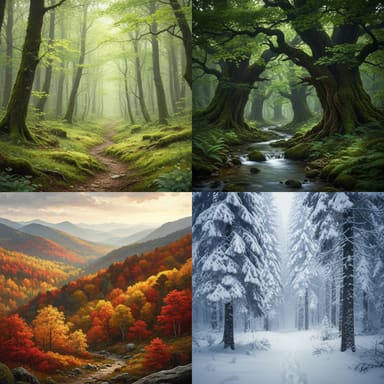
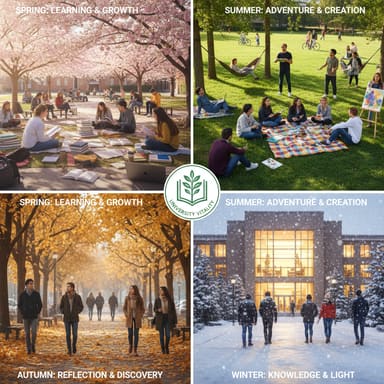
Three scenes shown as four-season grids: farmland, a forest and a campus.
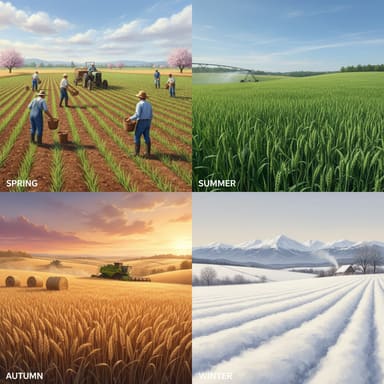
Farm field through the year
Planting in spring, green wheat in summer, a golden harvest in autumn and snow-covered rows in winter, each panel labelled.
Forest in four seasons
A woodland scene in fresh green, deep summer shade, red and gold leaves, and snow-laden pines.
Campus life by season
A university campus with blossom, picnics on the lawn, autumn walks and a snowy evening, with a caption for each season.
Four Seasons Rendering: real results and prompts
We made these on 18 November 2026 with our own test account, using Nano Banana 2.1 at 1K. Paid accounts start on Nano Banana 2.1 here. Free accounts use Nano Banana, and with it this mode returned the photo almost unchanged in our test. The sample uploads were made with text-to-image first, and the people in them are AI-generated, not real. Settings and prompts are shown exactly as we used them. Click “Use this prompt” to put a prompt into the generator above.
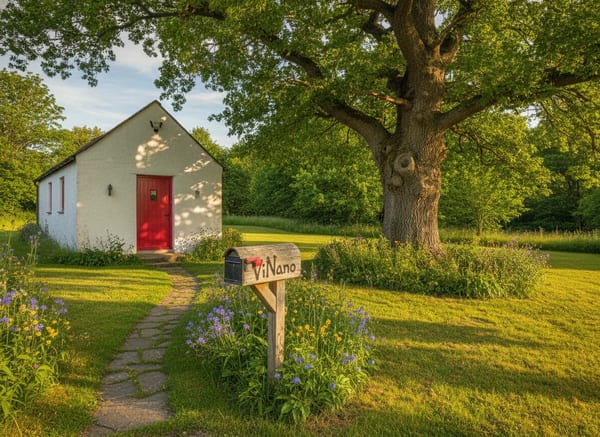
Sample upload
Prompt used to make this sample photo
A realistic photo of a small white cottage with a red door and a large oak tree beside it, a mailbox in front with the name "ViNano" painted on it, summer daylight.
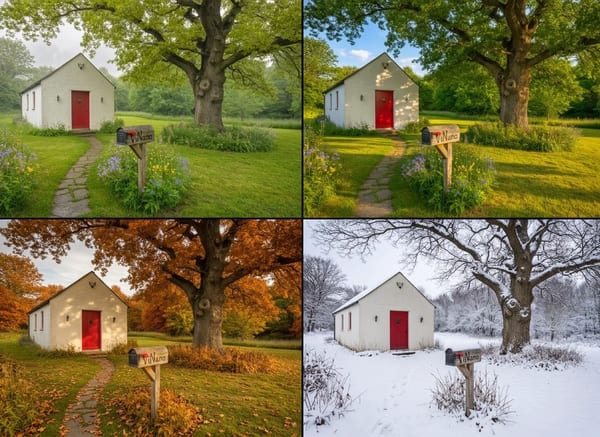
Result
Four panels of the same cottage, oak tree and mailbox through spring, summer, autumn and winter, with orange leaves in autumn and snow in winter.
Prompt
No extra prompt (the mode's default instructions)
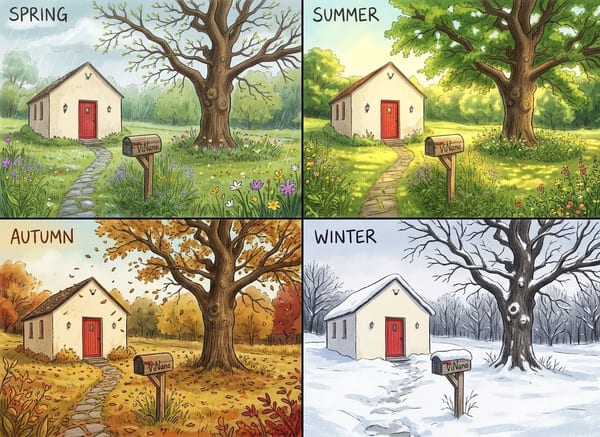
Result
With “Cozy hand-drawn illustration style” in the prompt, the same four seasons come out as a sketchy, colored-pencil illustration, each panel labeled with its season.
Prompt
Cozy hand-drawn illustration style
How to Make a Four Seasons Photo
- 1
Upload one photo of an outdoor scene. Trees, grass, water or sky give the seasons something to change.
- 2
Keep the pre-filled prompt for a 2x2 grid, or add preferences: “heavy snow in winter”, “cherry blossom in spring”, “a label in each corner”.
- 3
Check the credit cost on the button and generate.
- 4
Review the four panels, rerun if the viewpoint drifted, and download the grid.
Tips
- •Wide shots with vegetation change the most; indoor photos and close-ups barely change.
- •Ask for “same camera angle and framing in all four panels” if the composition drifts.
- •People in the scene may change clothes or disappear between panels; say “keep the people” or “no people”.
How the Four Seasons Photo Generator Changes a Scene
The tool sends your photo to an image model with a brief for four versions of the same view. Spring gets fresh green growth and blossom, summer gets full foliage and bright sun, autumn turns leaves gold and red, and winter brings snow and bare branches. The brief asks the model to keep composition, perspective and light direction consistent, so that the panels read as one place at four times of year.
All four panels arrive as one image. If you need the seasons as separate files, crop the grid with the built-in editing tools. Nano Banana is selected by default, and you can pick another model in the tool.
Photos That Work Best
Landscapes, parks, gardens, streets with trees, houses with a yard, lakes and mountain views give the clearest contrast. A single tree, or a bench under a tree, is a classic subject. City scenes with little vegetation change mostly through light, sky and what people wear, and interiors only change through the window.
Choose a photo with a stable horizon and some depth. Very tight crops leave the model little room to show the weather.
What a Four Seasons Photo Is Used For
Teachers use four-season grids to explain the year to young children and language learners. Garden and landscape designers show clients how a planting scheme could look in each season. Property owners and hosts preview a house in snow or in bloom, and artists use the grid as a reference sheet for a series.
Each panel also makes a good starting frame for a time-lapse style clip: upload one to the AI video generator and describe leaves falling or snow starting. For a single-season change with more control, describe it in the AI image editor.
Limits to Keep in Mind
The seasons are generic. The model does not know which trees are evergreen, when your region gets snow, or whether it gets any. Buildings and paths usually stay in place, but small objects, signs and people can change from panel to panel. Do not present a four seasons photo as documentation of real conditions, for example in a property listing, without saying that it is an AI illustration.
Four Seasons Photo FAQ
Quick answers to keep your workflow moving.
What is a four seasons photo?
It is one image that shows the same scene in spring, summer, autumn and winter, usually as a 2x2 grid. This tool generates it from a single photo.
Can I get just one season?
Yes. Edit the prompt to ask for one season, for example “show this scene in deep winter”.
Will the four panels show exactly the same view?
That is what the tool asks the model for, and large structures usually match. Small details can differ, so rerun if consistency matters.
Can I add season labels to the four seasons photo?
Yes. Ask for a label in each panel, such as “Spring”, “Summer”, “Autumn” and “Winter”. Short words usually render correctly; longer captions may contain errors.
How much does the four seasons photo generator cost?
Each generation uses credits based on the model you pick, and the generate button shows the cost before you start. New accounts receive free sign-up credits; the pricing page lists credit packs and plans.
Are my photos stored or shared?
Your upload is used to create the result you ask for and is not shown as an example on this page. Storage, retention and deletion are explained in our Privacy Policy, and the data retention notice with your results shows the current setting for your account.
Need another workflow?
Browse the complete gallery of ViNano AI generation modes to find the perfect fit for your project.