


AI Element Extractor
All tools (30)
An AI element extractor pulls the separate things in a picture, such as clothes, accessories, products or props, out of their scene and lays them out as individual items on a clean background. Upload one image, name the elements you want or leave the prompt empty, and download a flat-lay sheet you can crop into single assets.
Extraction is a generative redraw: the model repaints each element, so printed text, logos and fine patterns can change, and a transparent background is not guaranteed. Each generation uses credits, and the generate button shows the cost before you start.
Element Extractor
Keep only the item you name and place it on a clean background
Drop, paste or click to choose a photo
Needs: 1 photo · PNG, JPEG or WEBP, up to 20 MB
The samples on this page were made with Nano Banana 2.1. Free accounts can only use Nano Banana, so results may not match the samples.
Checking the price…
Content generated on this platform is produced by artificial intelligence models and does not represent the platform's position. [Disclaimer]. [Privacy Policy].
Element extraction examples
AI-generated cutouts placed on plain backgrounds, produced with the mode's default settings. Source photos, prompts and model versions were not recorded.
People set
Two adults, two children and an older adult isolated from their original setting onto a plain background as separate figures.
Vehicles and ships
Cars, airliners, a container ship and a cruise ship separated onto a light background so each can be reused as an individual asset.
Fashion set
A coordinated outfit (blazer, trousers, blouse, belt, bag, bracelet and boots) broken down into individually usable items.
Element Extractor: real results and prompts
We made these on 18 November 2026 with our own test account, using Nano Banana 2.1 at 1K. Paid accounts start on Nano Banana 2.1 here. Free accounts use Nano Banana, and with it this mode returned the photo almost unchanged in our test. The sample uploads were made with text-to-image first, and the people in them are AI-generated, not real. Settings and prompts are shown exactly as we used them. Click “Use this prompt” to put a prompt into the generator above.
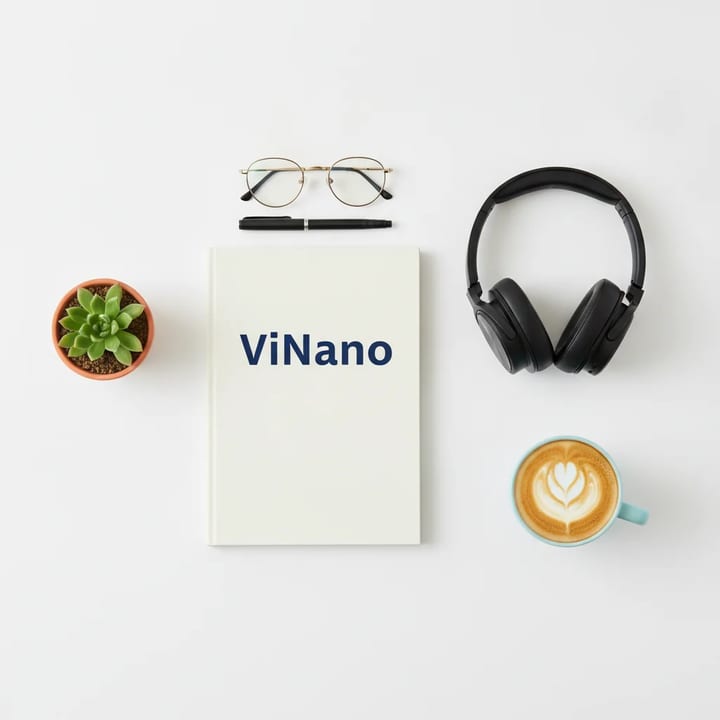
Sample upload
Prompt used to make this sample photo
Top-down flat lay on a white desk: a notebook with "ViNano" printed on the cover, a pair of over-ear headphones, a small potted plant, a cup of latte, a pen and round glasses, realistic photo.
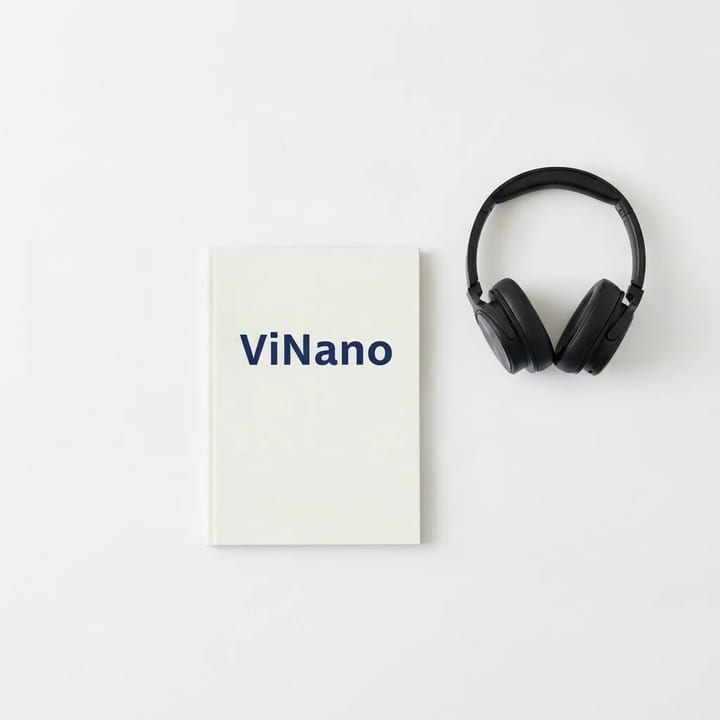
Result
Asked for only the headphones and the notebook, the model removed the plant, the latte, the pen and the glasses and left the two items in place on white.
Prompt
Extract only the headphones and the notebook
Result
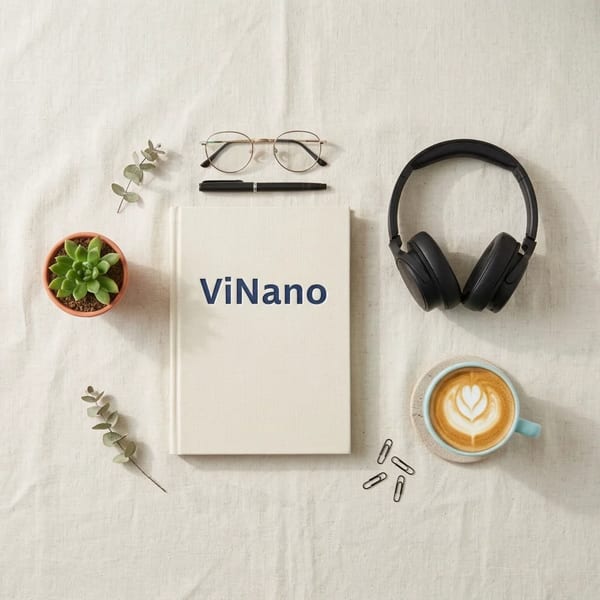
Without a prompt: the sample was already a flat lay, so the model kept every item, moved the set onto linen and added eucalyptus sprigs and paper clips that weren't in the photo. Name the items you want, as in the first example, for a cleaner result.
Prompt
No extra prompt (the mode's default instructions)
How to isolate an element
- 1
Upload an image containing the element you want to keep, and name the target in the prompt: object, subject and any area that must stay untouched.
- 2
State what should be removed and what the background becomes: a plain colour, transparency, or a new scene.
- 3
Generate one or two versions with different wording, then zoom in on the edges before you commit to a result.
- 4
Compare the output with the original: generative extraction can redraw texture, thin lines and hair, and it may not return a real transparent channel.
- 5
Finish in the built-in editor to clean up leftover background or to place the element on a new background.
Tips
- •Say which element must stay and which must go, for example "keep the red car, remove everything else"
- •Clear subject edges and an uncluttered background give the cleanest separation
- •If a subject is partly hidden, describe it in the prompt or generate several versions and pick the best
What the AI Element Extractor Does
By default the tool asks the image model to find every item it can extract, such as clothing, jewellery, footwear, bags and small things like phones, keys or sunglasses, remove the background and arrange the items as a flat lay on a white or neutral background with even lighting, like a catalogue page. Nano Banana is selected by default, and you can pick another model in the tool.
Your prompt is added to those instructions. Use it to say which elements to keep, how to arrange them and what the background should be.
Every item on one sheet
With an empty prompt, all visible clothing, accessories and small items are laid out side by side, spaced so each one can be cropped.
Choose what to extract
Name the elements, for example "only the sneakers and the bag", and the rest of the scene is left out.
Catalogue-style presentation
Soft shadows and a plain background give each item a product-photo look.
Not only fashion
Vehicles, furniture, packaging or characters can be separated too when you name them in the prompt.
Prompts for Extracting Elements from an Image
Upload the image first, then start from one of these. Each prompt is added to the tool's extraction instructions.
Outfit to flat lay
Extract the jacket, shirt, jeans, belt, watch and sneakers from this photo and arrange them as a flat lay on a white background, evenly spaced, no person.
Products on a shelf
Extract each bottle and box on the shelf as a separate product, facing forward, in a three-column grid on a light grey background.
Illustration parts
Separate the characters, the tree, the house and the clouds in this illustration into individual elements on a plain white background, keeping the original drawing style.
Room objects
Extract the sofa, floor lamp, coffee table and rug from this room photo and show them as separate catalogue items with soft shadows.
What People Extract Elements For
If you need one subject cut out with its original pixels, use the background remover instead. To place an extracted item in a new scene, try the AI photo combiner.
Shop listing drafts
Turn an outfit or lifestyle photo into separate item images for a store or marketplace draft.
Mood boards and lookbooks
Collect the pieces of a look on one clean sheet for a style guide.
Design references
Pull characters, props or icons out of an illustration as a starting point for a new layout.
Inventories
List what is in a photo, item by item, before you sell, store or catalogue it.
Element Extraction vs a Pixel-Exact Cutout
A background remover keeps the original pixels of one subject and deletes everything else. This tool repaints instead: it can separate overlapping items, complete parts hidden behind other objects and arrange everything neatly, but it may change stitching, printed text, logos and small patterns.
Compare each item with the original before you use it. If you sell the goods, check that the extracted images still match the real products.
Element extraction questions
Quick answers to keep your workflow moving.
How is this different from the background removal tool?
Element extraction is generative: the model redraws what it keeps, which copes with complex shapes but can alter fine detail. The background removal tool is built for a clean cut with a background colour you choose.
Does the output have a transparent background?
Not guaranteed. Ask for transparency in the prompt, then check the downloaded file; if the model returns a solid colour, run the result through the background removal tool.
Can I extract several objects in one run?
You can describe multiple elements, but results become less predictable as the count grows. One element per run is more reliable.
What does it cost, and how long does it take?
It uses the same credit model as the other image modes: cost depends on the selected model and resolution, and generation time varies with queue load.
The edges came out rough. How do I improve them?
Rerun with a simpler background, ask for sharper edges, or clean the result up in the editor. Manual tools handle small touch-ups faster than a new generation.
Is the AI element extractor free?
It is free to try. New accounts receive free sign-up credits, 50 for most email providers. With Nano Banana, the default model, one image costs 25 credits on a free account, so the sign-up credits cover two. Models such as Nano Banana Pro need a paid account, and the generate button shows the cost before you start.
What does it extract if I leave the prompt empty?
It looks for clothing, jewellery, footwear, bags and small personal items such as phones, keys or sunglasses, and lays them out as a flat lay. For anything else, such as vehicles, furniture or characters, name the elements in the prompt.
Need another workflow?
Browse the complete gallery of ViNano AI generation modes to find the perfect fit for your project.