


AI Background Removal
All tools (30)
AI background removal isolates the subject of a photo with a generative image model. Upload one picture, optionally say what to keep or what the new backdrop should be, and the tool returns the person, product or object cleanly separated from its surroundings.
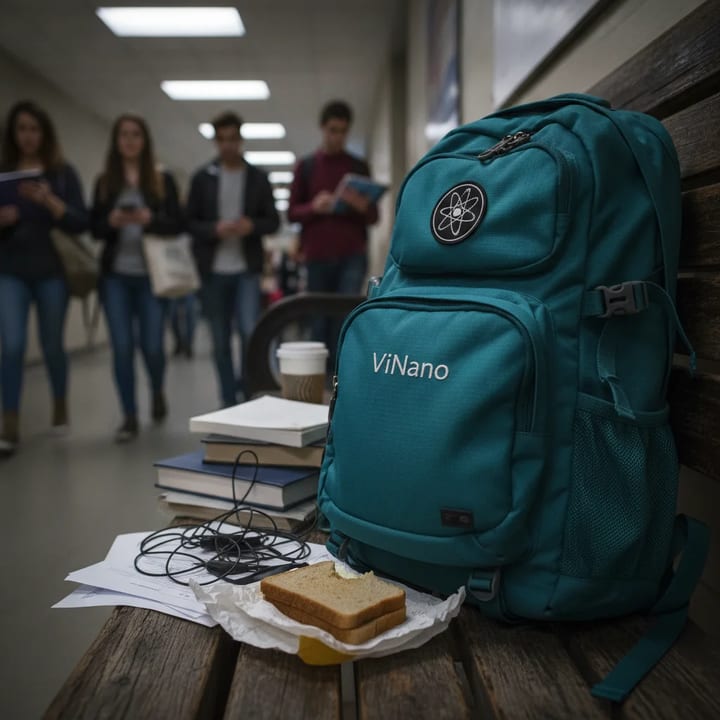
This mode generates a new image and may not return a real transparent channel. If you need a transparent PNG, use the dedicated background remover linked below. Each generation uses credits, and the generate button shows the cost before you start. Need a transparent PNG? Try Background Remover →
Background Removal
Upload a photo, pick the options and generate. No prompt needed.
Drop, paste or click to choose a photo
Needs: 1 photo · PNG, JPEG or WEBP, up to 20 MB
Checking the price…
Content generated on this platform is produced by artificial intelligence models and does not represent the platform's position. [Disclaimer]. [Privacy Policy].
AI Background Removal Examples
People, products and plants separated from their surroundings.
Portrait cut-out
A woman in a navy blazer isolated from her background and shown on a checkerboard preview, with loose strands of hair kept.
Product on a studio backdrop
A blue sports car lifted out of its scene and set on a seamless light-grey backdrop with a soft floor shadow.
Bouquet on white
A bouquet of roses, lavender and ferns on a pure white background, with fine leaf edges preserved.
Background Removal: real results and prompts
We made these on 18 November 2026 with our own test account, using Nano Banana at 1K, the model this page starts with. The sample uploads were made with text-to-image first, and the people in them are AI-generated, not real. Settings and prompts are shown exactly as we used them, and where a result missed part of the prompt or has spelling mistakes, the caption says so. Click “Use this prompt” to put a prompt into the generator above.
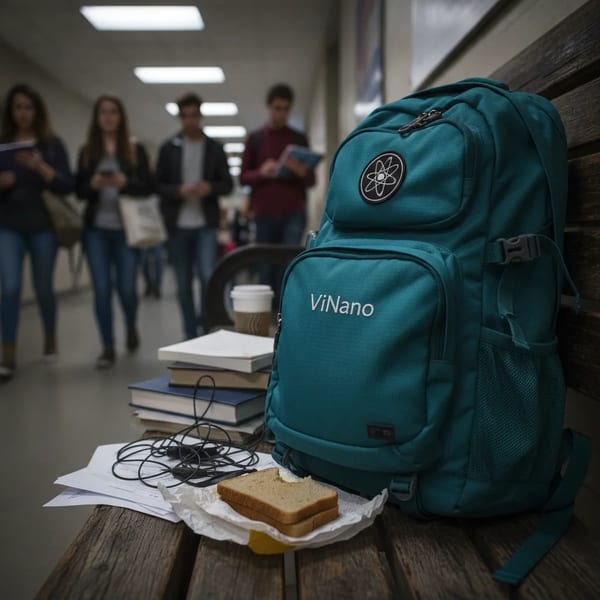
Sample upload
Prompt used to make this sample photo
A realistic photo of a teal backpack with a "ViNano" patch on the front, sitting on a cluttered wooden bench in a busy hallway.
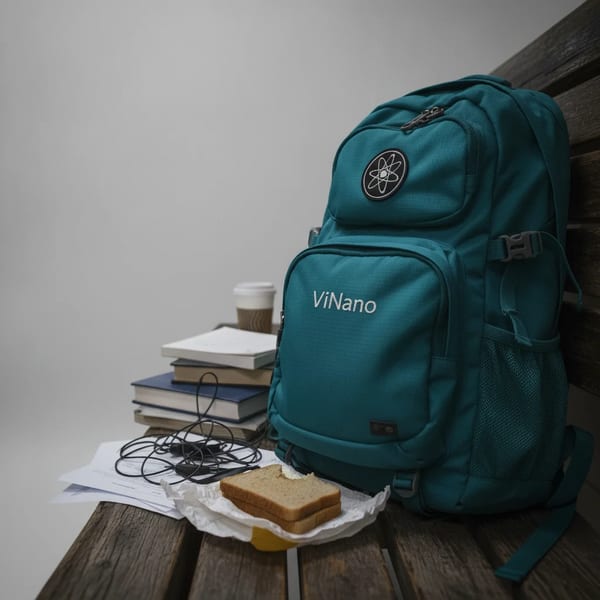
Result
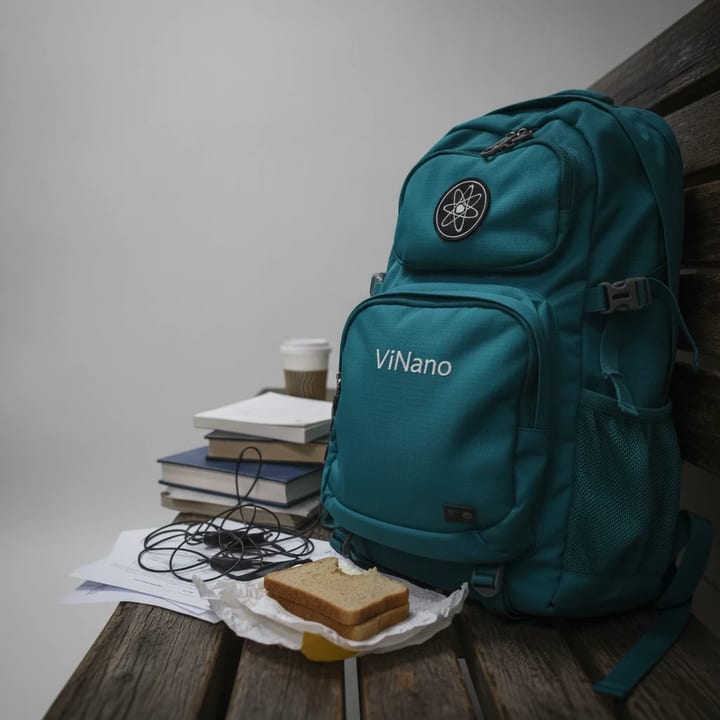
Without a prompt, the busy hallway and people are replaced with a plain grey wall, while the bench and everything on it stay.
Prompt
No extra prompt (the mode's default instructions)
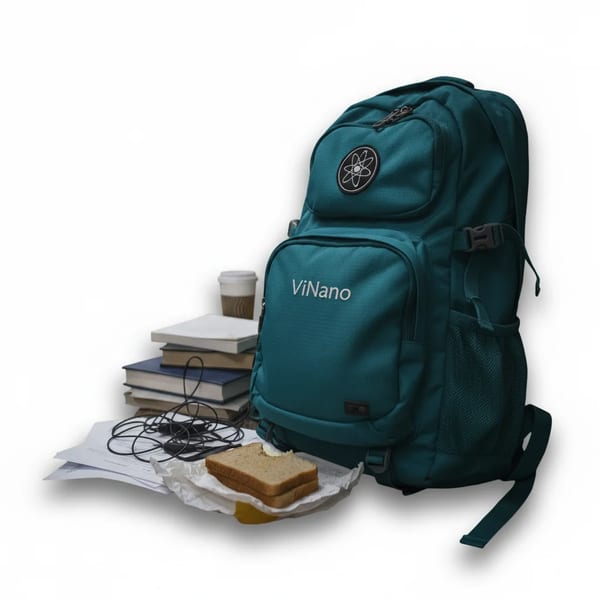
Result
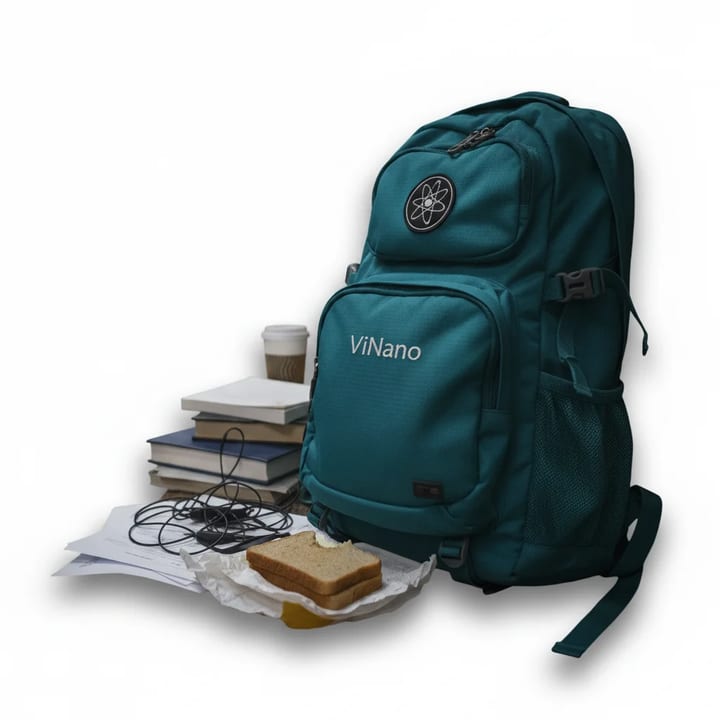
With pure white and a soft shadow in the prompt, the backpack and the things next to it are cut out cleanly, ready for a product listing.
Prompt
Put it on a clean pure white background with a soft shadow
How to Use AI Background Removal
- 1
Upload one photo with a clear subject: a person, a product, a pet or an object.
- 2
Keep the pre-filled prompt, or edit it to say what to keep and what the result should sit on: “keep the woman and her bag, plain white background” or “keep only the shoes, light grey studio backdrop with a soft shadow”.
- 3
Check the credit cost on the button and generate.
- 4
Zoom in on hair, fingers and edges, rerun if something was lost, and download.
Tips
- •Strong contrast between the subject and the background gives the cleanest edges.
- •Name the subject when there are several candidates (“keep the dog, remove the people”).
- •Compare with the original: a generative model can redraw small details of the subject while it removes the background.
How Generative AI Background Removal Works
Classic removers classify every pixel as subject or background and delete the background. This mode works differently: it sends your photo and an instruction to an image model, which redraws the subject without its surroundings. Nano Banana is selected by default, and you can pick another model in the tool.
The advantage is control by language. You can say which of several subjects to keep, ask for a plain colour, a studio gradient or a soft shadow in the same step, and handle scenes in which the subject is partly hidden. The cost is exactness: the result is a regenerated image, so fine details can change, and the background may come back as white or as a checkerboard pattern instead of true transparency.

When to Use This Mode and When to Use the Background Remover
Choose this mode when you want the subject on a clean, described backdrop in one step, or when you need to pick the subject with words. Choose the dedicated background remover when you need the original pixels of the subject kept as they are, typically for a transparent PNG that you will place in a design.
To pull one element, such as a logo, a pattern or a single object, out of a busy picture, the AI element extractor is built for that. For anything else, describe the edit in the AI image editor.

Tips for Clean Edges
Hair, fur, glass and semi-transparent fabric are the hard cases. Use the largest, sharpest version of the photo you have, and mention the difficult part in the prompt (“keep all flyaway hair”, “keep the glass transparent”). Avoid photos in which the subject is cut off by the frame, or in which the subject and the background share the same colour.
For product shots, ask for the same backdrop and shadow in every run, so that a catalogue looks uniform.

Common Uses for AI Background Removal
Online sellers clean up product photos for listings. Designers isolate a subject before building a banner or a thumbnail. People prepare a profile picture on a plain colour, and teachers cut objects out for slides and worksheets. Upload photos of other people only with their consent.
AI Background Removal FAQ
Quick answers to keep your workflow moving.
What is AI background removal?
It is the use of an AI model to separate the subject of a photo from its background. In this mode, a generative image model redraws the subject on a clean backdrop according to your prompt.
Will I get a transparent PNG?
Not guaranteed. A generative model may return a white or checkerboard background instead of a real alpha channel. For a transparent file, use the background remover.
Can I choose a new background color?
Yes. Add it to the prompt, for example “solid light blue background” or “white background with a soft shadow”.
Why do small details of my subject look different?
Because the image is regenerated, not masked. If the subject must stay pixel-identical, use the dedicated background remover.
How much does AI background removal cost?
Each generation uses credits based on the model you pick, and the generate button shows the cost before you start. New accounts receive free sign-up credits; the pricing page lists credit packs and plans.
Are my photos stored or shared?
Your upload is used to create the result you ask for and is not shown as an example on this page. Storage, retention and deletion are explained in our Privacy Policy, and the data retention notice with your results shows the current setting for your account.
Need another workflow?
Browse the complete gallery of ViNano AI generation modes to find the perfect fit for your project.